Spotify Canvas Size, Specs and How to Make One (2026 Guide)
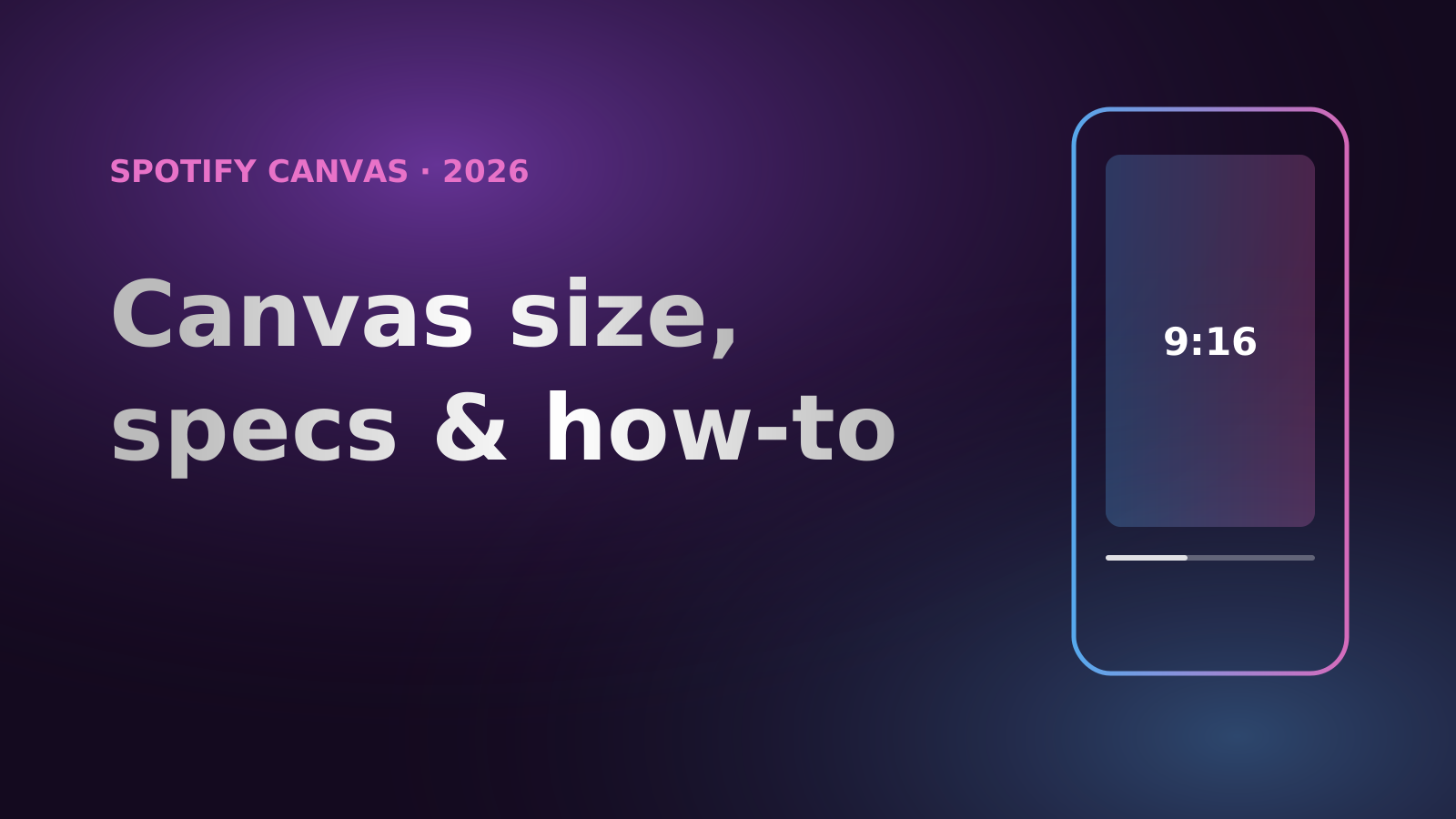
A Spotify Canvas is the short, looping vertical video that replaces your album art on the Now Playing screen. It is free, it takes a few minutes to upload, and Spotify's own data says it pays off: tracks with a high-quality Canvas have seen streams rise by up to 120% and saves by up to 114%.
This guide covers the official specs, the rules that trip people up, and how to make and upload a Canvas that actually gets seen.
Spotify Canvas specs at a glance
| Spec | Requirement |
|---|---|
| Aspect ratio | 9:16 (vertical) |
| Height | Between 720 and 1080 pixels |
| Length | 3 to 8 seconds |
| File type | MP4 (video) or JPG (still image) |
| Playback | Loops on the Now Playing screen, without its own sound |
Two practical notes on those numbers:
- Size: Spotify only specifies the height. For a 9:16 file that works out to 1080 × 1920 (recommended) or 720 × 1280 (minimum).
- Be exact: Spotify warns that if the length or size is even slightly off, the upload can fail. Export at exactly 9:16 and keep the clip between 3 and 8 seconds.
Spotify does not publish an official file size limit or frame rate. A standard 24, 25 or 30 fps MP4 at a modest bitrate works fine.
Content rules: what gets a Canvas removed
Spotify's guidelines and content policy boil down to a few rules:
- No promotion. No URLs, ticket links, "follow me" calls to action, social handles, brand logos (including Spotify's), product deals or contests.
- Text must relate to the track and should not distract from the visual. You can usually skip the song and artist name, because the Now Playing screen already shows them.
- No talking, singing or rapping. The loop will not line up with the lyrics, so lip movements look wrong.
- Avoid rapid cuts and intense flashing.
- Mark it explicit if it contains profanity, violence, drugs, sexual content or other sensitive topics.
Spotify also notes that the edges may be cut off on some phones and that the player controls cover part of the lower half. Keep the important part of the image in the centre.
How to upload a Canvas
You need to be the first main artist on the track, or a main artist on both the track and the release, with the Admin or Editor role in Spotify for Artists. Canvas is available to all artists and you can add it to any track, including upcoming releases.
On the web:
- Log in to Spotify for Artists.
- Go to Music and select the track.
- Click Add Canvas and upload your file.
In the Spotify for Artists app: open Music, select the track, then tap Canvas.
You can replace a Canvas at any time, and view counts carry over when you swap it. Refreshing it for a new campaign or tour is a good habit.
How to make a Canvas
You do not need a video crew. Three routes work well:
1. Cut a loop from your music video
If you already have a vertical music video, pick a 3 to 8 second moment without singing: a slow camera move, the artist turning, a landscape or a lighting change. Trim it in any editor (CapCut, iMovie, the Photos app) and export at 1080 × 1920.
2. Generate the visuals with AI
No video yet? With our AI music video generator you upload the song and one photo of the artist, choose the 9:16 Vertical format, and get a full beat-synced video. Pick a shot without lip sync and trim it to 8 seconds. You get your Canvas plus a full-length video for TikTok and Reels.
3. Animate your cover art
A subtle loop of your album art (a slow zoom, drifting light, moving particles) fits the "visual identity" Spotify recommends. Many artists keep the Canvas, cover art and profile in the same visual theme.
Whichever route you choose, think about the loop point. Spotify mentions three loop styles that work well: a continuous loop that flows seamlessly, a hard cut back to the start, and a rebound that plays forward then in reverse.
Spotify Canvas not working? Check these settings
If a Canvas is not showing, check these in order:
- Turn Canvas on. In the Spotify app, tap your profile picture, then Settings and privacy → Content and display, and switch on Canvas under "Videos and Canvas". Since April 2026 this setting syncs across all your devices.
- Turn off Data Saver. In the app: Settings and privacy → Data-saving and offline → Data Saver off.
- Use the mobile app. Spotify's artist support page says Canvas plays in the Spotify mobile app, which needs iOS 12 or later or Android 6.0 or later. Update the app if it is old.
- Check the country. Canvas is available in most major markets, including the US, UK, Canada, most of the EU, Australia, Japan, South Korea, Brazil, Mexico and Indonesia, but not everywhere.
- For labels: if rights are split, make sure you are looking at the version of the track you own.
Can you download a Spotify Canvas?
Spotify does not offer a way to download Canvas videos. Third-party "Canvas downloader" websites are not affiliated with Spotify, and Spotify's user guidelines prohibit copying or ripping content from the service. If you made the Canvas, keep the original file you uploaded.
FAQ
How long can a Spotify Canvas be? Between 3 and 8 seconds. It loops for as long as the song plays.
What size is a Spotify Canvas? 9:16 vertical, 720 to 1080 pixels tall. 1080 × 1920 is the safest choice.
Can I use a still image? Yes, Canvas accepts JPG, but a moving loop is what grabs attention on the Now Playing screen.
Does a Canvas have sound? No. The song keeps playing and the Canvas loops silently on top, which is why footage of someone singing looks out of sync.
Does Spotify charge for Canvas? No. It is a free feature for all artists.
Specs and settings checked against Spotify's support pages in October 2026. Spotify changes these occasionally, so check Spotify for Artists if an upload fails.
Turn your song into a music video
Upload a track and a photo. AIMusicVideoGen plans the shots and cuts every scene to the beat.
Start creatingKeep reading

How to Make a Music Video for Your Suno Song (2026 Guide)
Suno can write the song, but its own video export is just your cover art. Here is how to download the right file, stay within Suno's new rules, and turn your Suno track into a real music video.
Oct 10, 20265 min read
How to Make a Video with Pictures and Music (3 Easy Ways)
Three ways to turn photos and a song into a video, from a free photo slideshow to a single cover image to a fully animated AI music video, plus the trick that makes every photo change land on the beat.
Oct 10, 20265 min read